

Most HVAC shops already know what goes on a work order. The trouble starts when the orders pile up: which ones are still open, which emergency call has been sitting too long, and what a finished job cost in parts and labor. Our HVAC work order template keeps every order in one log, ages each open order against target days you set per priority, and prints any single order on a one-page form.
Download the HVAC work order template. It’s a plain .xlsx with no macros and no sign-up. Swap the sample orders for your own and the ages, overdue flags and cost totals recalculate.
Video walkthrough
This short captioned walkthrough goes from the log to the printable form to the Dashboard.
Who this template is for
We built it for small HVAC and mechanical service teams that take calls, send a technician, and need a record of every job without buying software yet. That might be an owner-operator with two or three technicians, an office manager who types up the day’s tickets, or a facilities team that handles its own rooftop units and boilers.
It answers four questions:
- Which orders are still open, and who has them?
- Which open orders are older than they should be for their priority?
- What did each job cost in parts and labor?
- Can a technician leave site with a printed copy of the order and get it signed?
It works the same way as a field service work order template or a maintenance work order template for any trade. The sample just happens to be HVAC equipment.
What’s in the workbook
There are four sheets, in this order:
- Instructions covers setup, the color legend, Google Sheets import, the limitations, and a note that the formulas, layout and sample figures were written from scratch for this file.
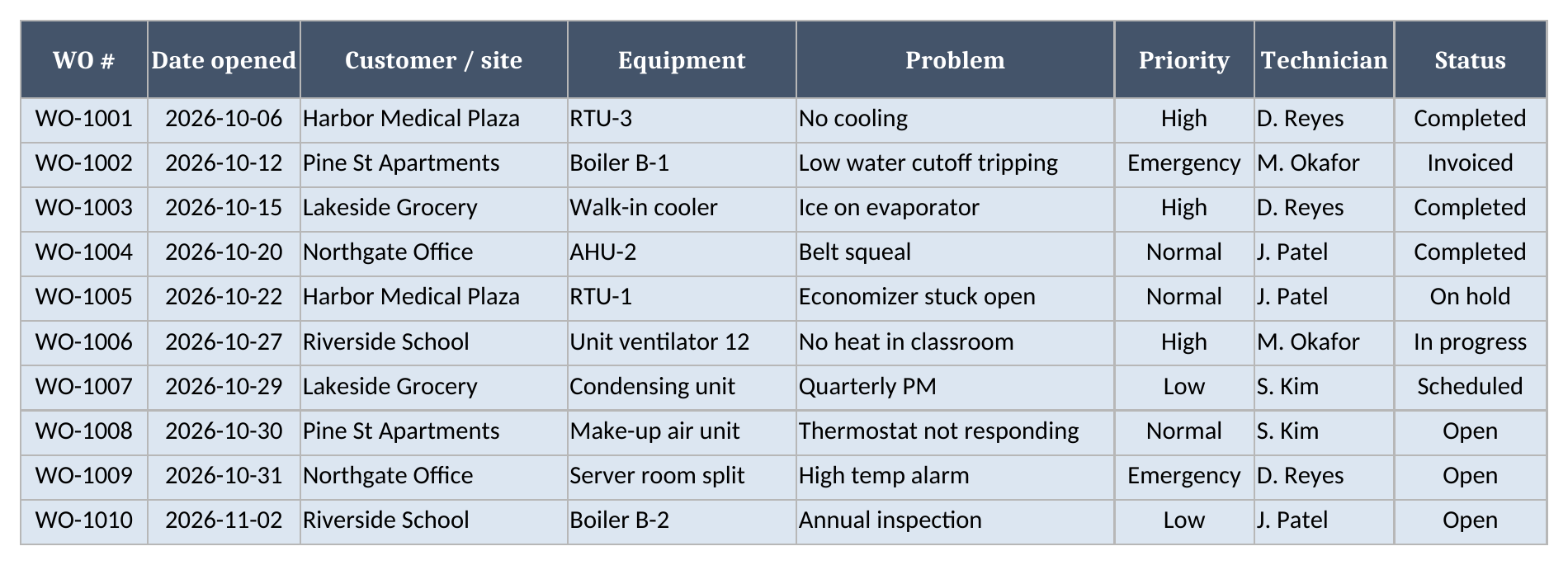
- Work Orders is the log, with one row per order. You enter the WO #, date opened, customer or site, equipment, problem, priority, technician, status, date completed, labor hours and parts cost. The sheet works out labor cost, the order total, age in days, an Overdue flag and a Row check.
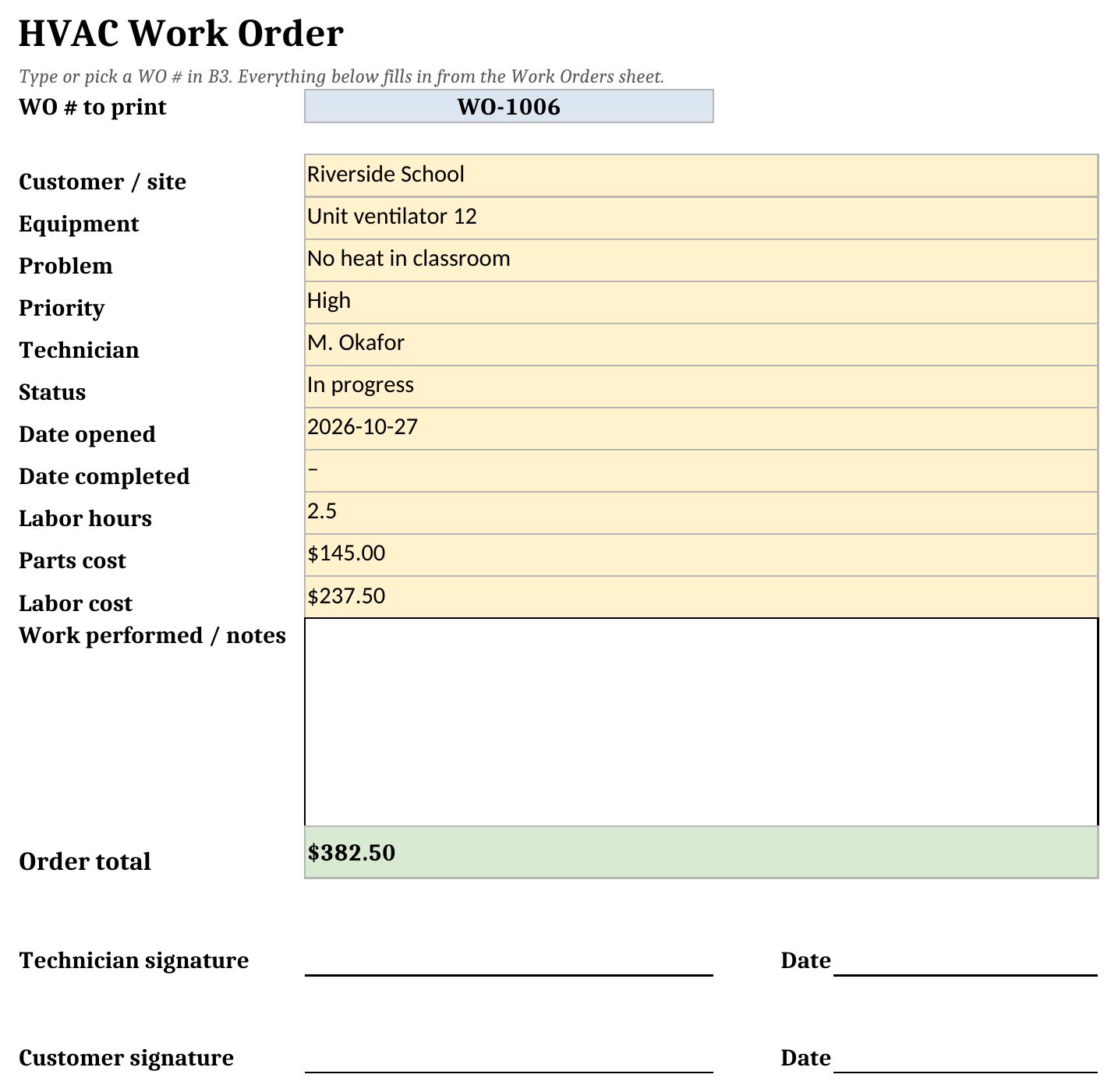
- Order Form is the printable work order form. Type or pick a WO # and it fills in that order’s details, parts, labor and total, with a box for work performed and signature and date lines for the technician and the customer.
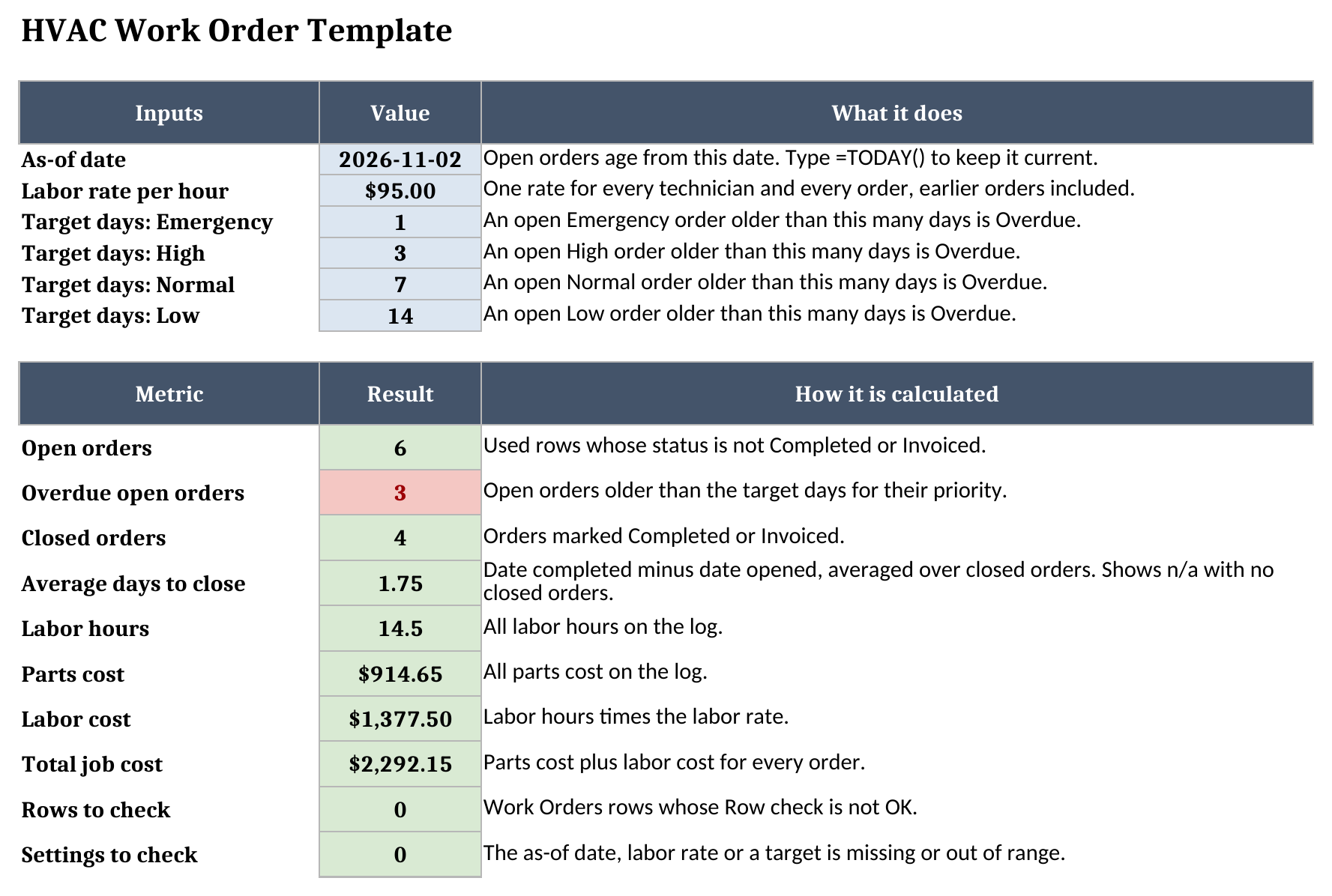
- Dashboard holds the settings (the as-of date, your labor rate, and target days for each priority) and the totals.
Blue cells are for typing, yellow cells calculate, and green cells are the headline results.
How to set it up
- On Dashboard, set the as-of date, your labor rate per hour, and the target days for Emergency, High, Normal and Low orders. The sample as-of date is typed so the sample numbers stay put. When you start using the log for real, type
=TODAY()in that cell. - On Work Orders, clear the sample rows and add your own, one row per order. Keep each WO # unique, because the Order Form finds orders by it. Your own numbering works, whether that’s
WO-1001,24-0117or a dispatch ticket number. - Pick the priority and status from the dropdowns. Completed and Invoiced count as closed. Open, Scheduled, In progress and On hold count as open.
- When a job is done, set it to Completed and type the date completed.
- Fix any Row check that doesn’t read OK, then confirm Rows to check and Settings to check on Dashboard both read 0.
The sample targets are 1 day for Emergency, 3 days for High, 7 days for Normal and 14 days for Low. Those are placeholders that show how the flag works. Set them to whatever you promise customers or hold your own team to.
How the Overdue flag works
Each open order is compared with the target for its own priority.
Age in days for an open order is the as-of date minus the date opened. For a closed order it’s the date completed minus the date opened, so a closed order stops aging. Overdue reads Overdue when an open order’s age is greater than its priority’s target, On time when it isn’t, and Closed for anything Completed or Invoiced.
Take WO-1006, the classroom unit ventilator at Riverside School. It’s a High order opened on 2026-10-27 and still in progress. Against the sample as-of date of 2026-11-02 it’s 6 days old, past the High target of 3, so it reads Overdue. WO-1007, the quarterly PM on the condensing unit, is 4 days old. It’s a Low order with a 14-day target, so it’s On time.
Closing an order updates the Dashboard on its own. Set WO-1006 to Completed with a date of 2026-11-02 and three things change on the Dashboard: open orders drops by one, overdue open orders drops by one, and the order’s 6 days join the average days to close.
The flag only measures how long an order stays open. If you also want to know how often your technicians resolve a call in one trip, read our explainer on first-time fix rate. A log that shows many repeat orders on the same equipment is usually a sign that number is worth tracking.
Printing a single work order
Order Form turns any row in the log into a one-page work order form. Type or pick a WO # in B3 and the sheet looks up that exact number on Work Orders. It fills in the customer and site, equipment, problem, priority, technician, status, dates, labor hours, parts and labor cost, and the order total. Below that there’s a box for work performed and signature and date lines for the technician and the customer. The print area is set to fit one page.
The lookup only fills in the form when exactly one order matches. If the WO # is blank, the total reads “Enter a WO #”. If no order or more than one order matches, it reads “Check WO #”. Either way, every field shows a dash, so you can’t print a stale ticket by mistake. Matching is literal, so a typo or a stray * won’t pull up a different order.
Worked example: the sample log
The sample has ten orders across five customers and four technicians, with a labor rate of $95 per hour. Treat them as sample inputs to replace. Here’s what the Dashboard reports for them:
| Metric | Result |
|---|---|
| Open orders | 6 |
| Overdue open orders | 3 |
| Closed orders | 4 |
| Average days to close | 1.75 |
| Labor hours | 14.5 |
| Parts cost | $914.65 |
| Labor cost | $1,377.50 |
| Total job cost | $2,292.15 |
And here’s where each open order stands:
| Order | Priority | Status | Age (days) | Flag |
|---|---|---|---|---|
| WO-1005 RTU-1, economizer stuck open | Normal | On hold | 11 | Overdue |
| WO-1006 Unit ventilator 12, no heat | High | In progress | 6 | Overdue |
| WO-1007 Condensing unit, quarterly PM | Low | Scheduled | 4 | On time |
| WO-1008 Make-up air unit, thermostat | Normal | Open | 3 | On time |
| WO-1009 Server room split, high temp alarm | Emergency | Open | 2 | Overdue |
| WO-1010 Boiler B-2, annual inspection | Low | Open | 0 | On time |
The 1.75 average comes from the four closed orders: 1, same day, 2 and 4 days. On the form, WO-1006 shows 2.5 labor hours, or $237.50 at the sample rate, plus $145.00 in parts, for an order total of $382.50.
Importing it into Google Sheets
The template is an .xlsx file. To try it in Google Sheets, import it:
- Download the workbook from the template link.
- Open Google Sheets.
- Choose File > Import > Upload.
- Select the downloaded file.
- Choose Insert new sheet(s), or create a new spreadsheet from the upload.
Google Sheets converts the file on import, and some formulas, dropdowns or colors may not come across the same way. Before you rely on it or share it with your team, enter a few of your own orders and check Work Orders, Order Form and Dashboard.
How it fits with our other templates
Our other templates cover the work around an order:
- The field service report template is the write-up a technician leaves at the end of the visit, with findings and recommendations. One order here often ends with one report there.
- The preventive maintenance checklist lists the tasks and readings for a PM visit. Raise the PM as an order here, and use the checklist on site.
- The equipment maintenance log template keeps the service history for each piece of equipment. A finished order usually becomes a row there too.
You’ll find the rest of the set on our free field service templates page.
Limitations to know before relying on it
- A row with a blank or shared WO #, a missing or out-of-range date (1950 to 2099), an unlisted priority or status, a closed order with no completion date, a completion date before the date opened, or labor hours or parts cost out of range shows a warning in Row check. Open orders, overdue open orders, average days to close and total job cost then read Check data until Rows to check reads 0. A bad setting on Dashboard does the same through Settings to check.
- There’s one labor rate for everyone, and changing it reprices earlier orders.
- Parts cost is one amount per order, not a parts list.
- Age counts calendar days. It doesn’t track arrival times, response windows or business hours.
- The log holds up to 500 orders. Formulas, totals and dropdowns stop at row 501 on Work Orders.
- It’s one file. It won’t dispatch, schedule, notify a technician or sync between people in the field.
Once dispatch, the technicians in the field and billing all need the same order at the same time, a shared file can’t keep them in step. Our Vendor Matcher asks about your trade, team size and budget and suggests field service software to compare.
Until then, grab the HVAC work order template, type in this week’s orders, and set your priority targets to see what’s overdue.