

A preventive maintenance visit on a rooftop unit produces two kinds of results: tasks that went fine or didn’t, and readings that are either inside the limits or outside them. Our HVAC preventive maintenance checklist records both in one workbook and turns every failed task and every out-of-spec reading into a numbered follow-up line, so the visit ends with a list of what still needs fixing.
Download the HVAC preventive maintenance checklist. It’s a plain .xlsx file with no macros and no sign-up. Open it in your spreadsheet app, replace the sample visit with your own, and the counts, the in-spec checks and the follow-up list update as you type.
Video walkthrough
This short captioned walkthrough follows one sample visit from the task list to the finished follow-up list.
Who this checklist is for
We built it for HVAC technicians and service managers who run planned maintenance on packaged units, split systems and rooftop equipment, and who want each visit recorded the same way every time. It also suits a facilities team that does its own PM and needs a record of what was checked, what was measured and what was left open.
The workbook covers one visit on one unit. It answers three questions at the end of that visit:
- Which tasks passed, which failed, and which didn’t apply to this unit?
- Which readings landed outside the limits you set?
- What follow-up work does the visit leave behind?
Scheduling is a separate job. When the next PM is due belongs in a maintenance log, which we cover further down.
What’s in the workbook
There are six sheets, in this order:
- Instructions explains setup, the color legend, how to import into Google Sheets, and the limitations. It also states that the formulas, layout and sample figures were written from scratch for this file.
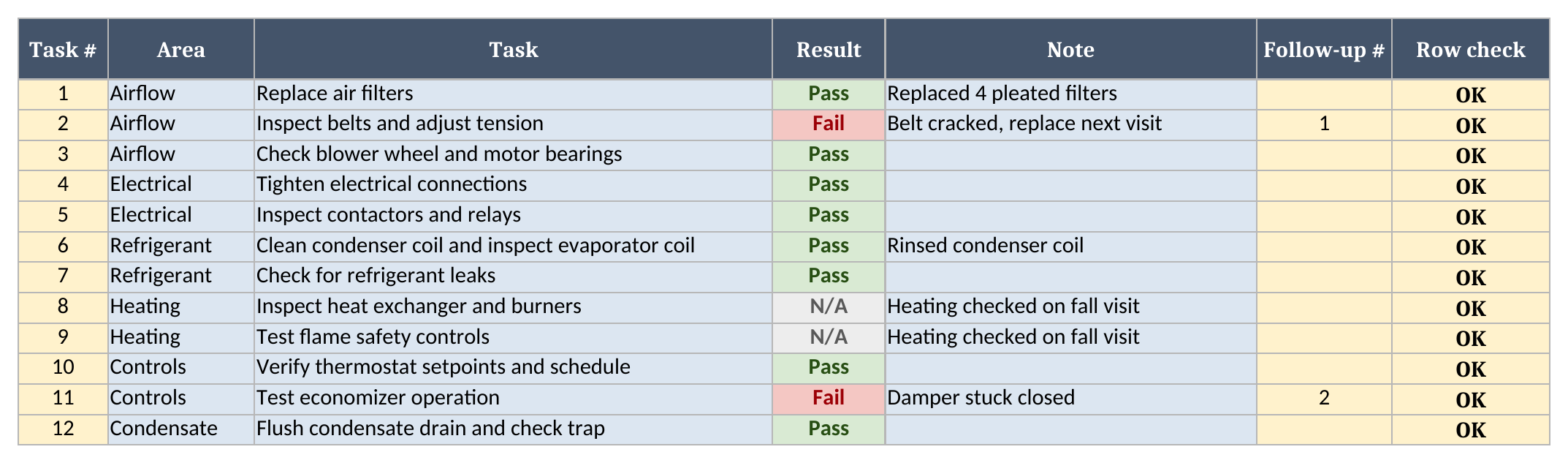
- Tasks is the checklist itself: task number, area, task, a Result dropdown (Pass, Fail or N/A) and a note. Failed tasks get a follow-up number, and a Row check flags anything incomplete.
- Readings is where measurements go. Pick a Reading ID, type the value, and the sheet looks up the name, unit and limits, then reports In spec, Out of spec or a check message.
- Limits holds your own minimum and maximum for each reading, stored as numbers. A Row check catches missing IDs, duplicate IDs, and limits that are blank, text, or reversed.
- Follow-ups lists every failed task and every out-of-spec reading as a numbered line, with its source and a detail column. It has room for 150 lines.
- Summary holds the visit header (site, unit, technician, visit date) and the results: tasks checked, pass rate, readings in and out of spec, follow-up items, and a Rows to check count.
Blue cells are for typing, yellow cells calculate, and green cells are the headline results.
How to set it up
- If your spreadsheet app opens the file read-only, turn on editing so the formulas calculate.
- On Limits, replace the sample limits with values from the equipment nameplate and the manufacturer’s service data. The sample limits are placeholders for a made-up unit. They are not recommendations for your equipment.
- Keep each Reading ID unique. Your own format works, whether that’s a short code like SP-1 or a longer name.
- On Tasks, edit the task list to match the unit type and your service agreement. Add rows below the sample if you need more; the sheet holds 100 tasks.
- On Summary, fill in the site, unit, technician and visit date.
- During the visit, mark each task Pass, Fail or N/A and type each reading’s value on Readings.
- Clear every Row check that isn’t OK, then confirm Rows to check on Summary reads 0.
How a failure becomes a follow-up
You don’t copy failed items onto a separate list after the visit. The workbook builds that list while you fill in the results.
On Tasks, a row marked Fail gets the next follow-up number. On Readings, a value below the minimum or above the maximum reads Out of spec and gets the next number after the task failures. Follow-ups then pulls each numbered line in order, by its number, with the item name, whether it came from a task or a reading, and the detail: your note for a task, or the value against its limits for a reading.
The comparison uses only the numbers on Limits. A value equal to the minimum or the maximum counts as in spec. A reading with no value is left out, and a Reading ID that isn’t on Limits shows Check ID.
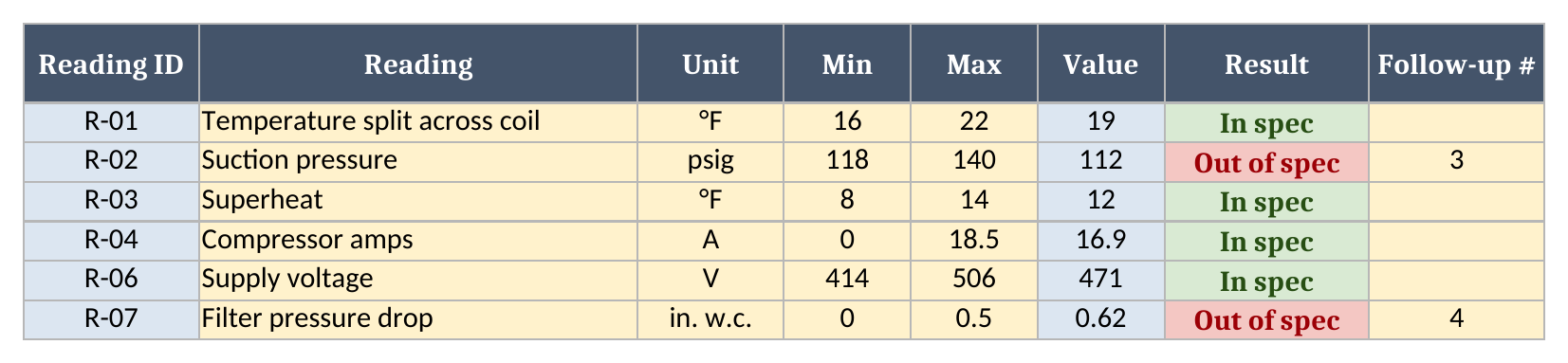
In the sample, two readings miss. Suction pressure reads 112 against limits of 118 to 140, and filter pressure drop reads 0.62 against a maximum of 0.5. Both land on Follow-ups after the two failed tasks:

Each of those lines can go straight onto a work order. Change the belt task to Pass and it drops off the list, and the lines below it move up a number.
Why some results read Check data
An incomplete row can make a visit look cleaner than it was, so the workbook holds back some results until the rows are fixed.
Every input sheet has a Row check column. Tasks flags a task with no result, a result with no task name, or a result that isn’t Pass, Fail or N/A. Readings flags an unknown Reading ID, a value that isn’t a number, or limits that don’t make sense. Limits flags a missing or duplicate ID and a blank, text or reversed bound. Summary adds those up in Rows to check, and while that count is above zero, In spec, Out of spec and Follow-up items read Check data instead of a number.
Follow-up lines listed is the exception. It counts what is on the Follow-ups sheet right now, so you can still see the list while you fix the rows.
Worked example from the sample data
The sample is a made-up cooling-season visit to one rooftop unit: twelve tasks and six readings. Here is what Summary shows:
| Result | Sample visit |
|---|---|
| Tasks checked (Pass + Fail) | 10 |
| Passed | 8 |
| Failed | 2 |
| N/A | 2 |
| Pass rate | 80.0% |
| Readings taken | 6 |
| In spec | 4 |
| Out of spec | 2 |
| Follow-up items | 4 |
| Rows to check | 0 |
The two N/A tasks are the heat exchanger inspection and the flame safety test, since a cooling-season visit on this sample unit skips the heating section. N/A tasks stay out of the pass rate, so it is 8 out of 10, not out of all twelve. The two failed tasks are the belt inspection and the economizer test.
Six readings were taken. Condenser fan amps has a limit on Limits but no value on Readings, so it isn’t counted. Four readings are in spec, and the two misses described above bring Follow-up items to 4, the last one being filter pressure drop.
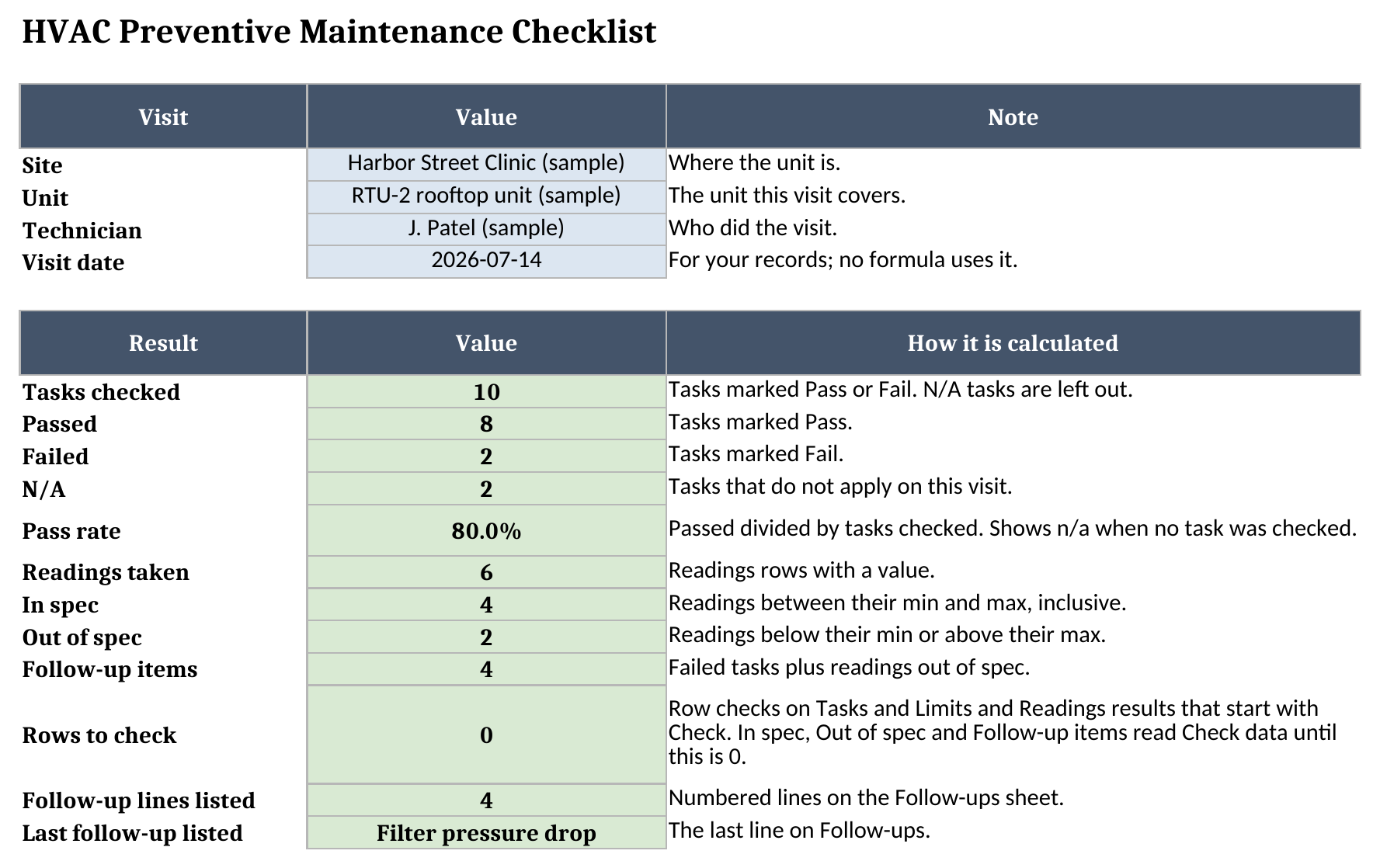
The sample data is made up, so use these figures to learn how the sheet reports a visit, and don’t read them as a benchmark.
How to use it in Google Sheets
The .xlsx file should import into Google Sheets:
- Save the workbook from the .xlsx download.
- Open Google Sheets.
- Choose File > Import > Upload and select the file.
- Create a new spreadsheet from the upload, or insert it as new sheets.
- Open Summary and Follow-ups and check that the results match the sample.
There are no macros to lose. Formatting and dropdowns can differ after an import, so check them before you rely on the copy or share it with your team.
How it fits with our other templates
This checklist records one visit. Three other templates cover the jobs around it:
- The equipment maintenance log template tracks when each asset is due for PM and what every past visit cost. Once the visit is done, log it there so the next due date moves.
- The field service work order template is the paperwork for a single job. Each line on Follow-ups is a candidate for one.
- The printable HVAC inspection checklist pack is for teams that want paper on a clipboard rather than a workbook on a tablet.
The rest of the set is on the free field service templates page.
Limitations to know before relying on it
- One workbook is one visit on one unit. Save a copy per visit, or keep one file per unit and clear the results each time.
- It doesn’t track due dates or service intervals. That’s the maintenance log’s job.
- Limits are a plain minimum and maximum. A reading whose acceptable range depends on another reading, such as superheat against outdoor temperature, needs you to set the limits for the conditions on the day.
- The sheets hold 100 tasks, 50 readings, 50 limits and 150 follow-up lines. Formulas and dropdowns stop at those rows.
- Nothing is sent anywhere. The file won’t create work orders, assign technicians or notify the office.
When several technicians are filling in checklists at once and someone retypes the follow-ups into work orders every evening, it’s worth looking at our comparison of CMMS vs field service software.
Until then, grab the HVAC preventive maintenance checklist, set your limits from the nameplate, and run it on your next PM visit.