

On a mechanical project, the equipment schedule is the sheet everyone keeps checking: the estimator pricing units, the electrician sizing circuits, the PM chasing submittals, the startup tech confirming what went on the roof. Our HVAC equipment schedule template puts that list in one workbook, with one row per tagged unit, totals by equipment type, and a running count of where every submittal stands.
Download the HVAC equipment schedule template. It’s a plain .xlsx with no macros and no sign-up. Open it in a spreadsheet app, replace the sample units with your own, and the totals, submittal counts and electrical flags recalculate. To work in Google Sheets, import it with the steps further down.
Video walkthrough
This short captioned walkthrough goes from a row on Schedule to the totals on Types and the counts on Summary.
Who this schedule is for
The workbook is for mechanical contractors and design-build HVAC shops that need a working equipment list during a project: from bid and submittals through install and turnover. It suits a project manager tracking approvals, an estimator checking tonnage against the drawings, or an office lead who keeps the submittal log for a handful of jobs at once.
People search for this under a few names: an HVAC equipment list template, a mechanical equipment schedule, or a submittal log. Here they all mean a schedule that answers four questions.
- What equipment is on this project, and what is each unit tagged?
- How much cooling, heating and airflow does each equipment type add up to?
- Which submittals are approved, which are out for review, and which came back for changes?
- Does any unit’s electrical data look wrong before the circuits get sized?
Maintenance due dates are left out on purpose. They belong in a service log once the equipment is running, which we cover below.
What’s in the workbook
There are four sheets, in this order:
- Instructions covers setup, the Google Sheets import, the limitations, and a note that the formulas, layout and sample figures were written from scratch for this file.
- Types holds your equipment type codes (RTU, AHU, EF, FCU, B and CU in the sample) with a description and the capacity basis each type is rated on. The sheet counts the units of each type on Schedule and totals their cooling tons and airflow.
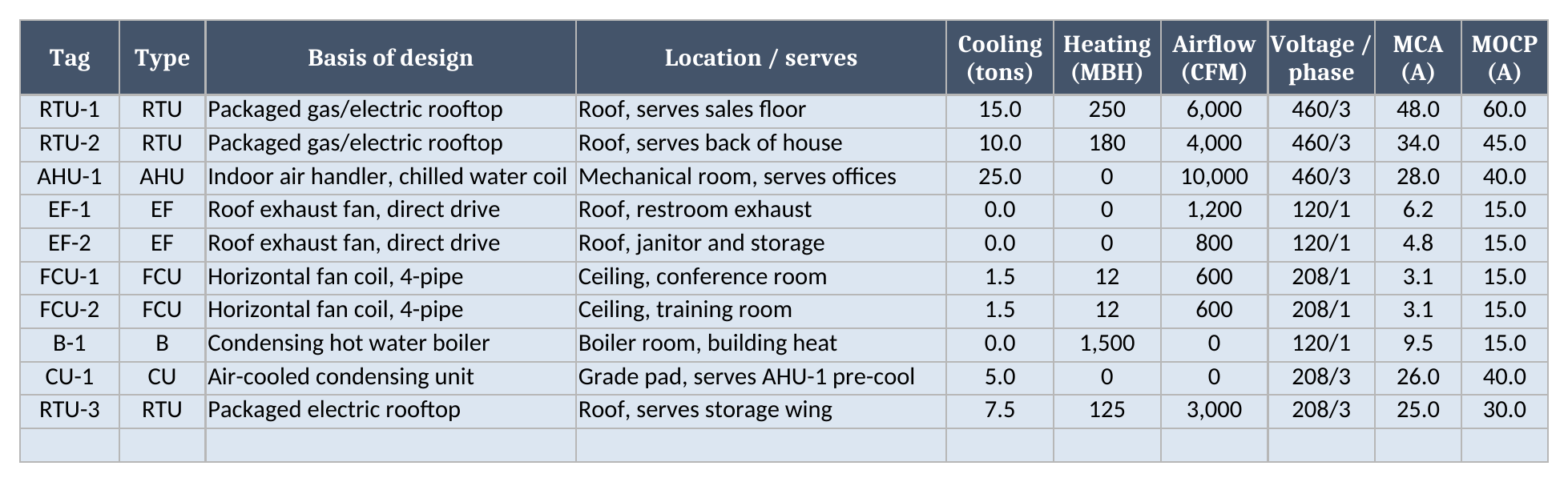
- Schedule is the equipment list itself. Each row has a tag, type, basis of design, location, cooling in tons, heating in MBH, airflow in CFM, voltage and phase, MCA, MOCP, refrigerant, weight, install date, warranty length and submittal status. Warranty ends and a Row check are calculated.
- Summary reports units scheduled, total cooling, heating and airflow, submittal counts by status, rows to check and electrical flags.
Blue cells are for typing, yellow cells calculate, and the green cells on Summary are the results to read. The sample project’s tags, ratings and dates are synthetic inputs for you to replace. They aren’t sizing guidance for any real building.
How to set it up
- If your spreadsheet app opens the file read-only or in a protected mode, turn on editing so the formulas calculate.
- On Types, keep the codes you use and add your own in the next empty row. Each code has to be unique, because Schedule matches on it exactly. Your own convention works: if your drawings say PRTU or DOAS, use that.
- On Schedule, replace the sample rows with your equipment, one row per tag. The Type column is a dropdown that reads the live list on Types, so a new code shows up in it as soon as you add it.
- Enter each capacity in the unit its header names: tons, MBH, CFM, amps and pounds. Leave a capacity at 0 when it doesn’t apply, like heating on an exhaust fan.
- Enter the install date and the warranty length in months as units go in. Warranty ends fills in once both are there.
- Set Submittal status from its dropdown each time a submittal goes out or comes back.
- Fix every Row check that isn’t OK, then confirm Rows to check on Summary reads 0.
How a unit’s type rolls into the totals
Every total on Types and Summary comes from the rows on Schedule. You never type a total.
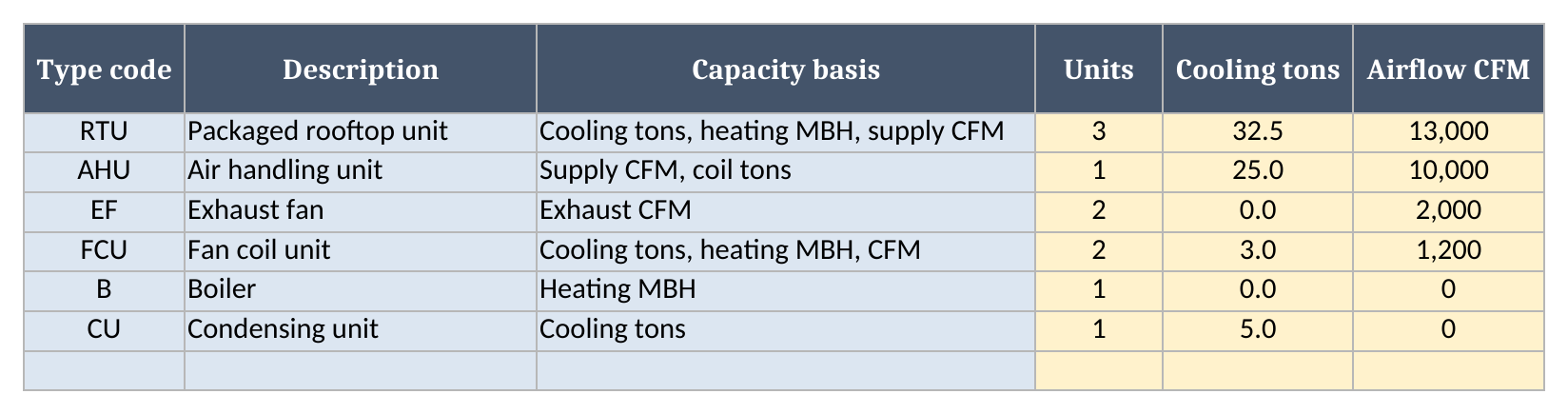
Pick a type for a unit and its numbers join that type’s row on Types. Units counts the Schedule rows whose type matches the code exactly. Cooling tons and Airflow CFM add up those rows’ capacity and airflow. In the sample, the 3 rooftop units add up to 32.5 tons and 13,000 CFM. The single air handler carries 25.0 tons and 10,000 CFM on its own.
Move a unit to another type and its capacity moves with it. Upsize a unit and both its type total and the project total change. When a design revision bumps RTU-3 up a size, you change one cell and every total that depends on it updates.
The match is exact, character for character. A type typed as CU* on Schedule doesn’t quietly match CU, and neither does a blank. Either one marks the row Check type, because a unit with no listed type would otherwise drop out of the rollup without anyone noticing. Summary has a cross-check for this: Units in the type rollup should equal Units scheduled. If it doesn’t, some row has a type that isn’t on Types.
Submittals and the MOCP check
The Submittal status dropdown has five values: Not submitted, Submitted, Approved, Approved as noted, and Revise and resubmit. Summary counts each one, and Approved includes Approved as noted, since that status lets the order go ahead once the notes are addressed. A tagged row with no status yet counts as Not submitted, so an unsent submittal still shows up in the count.
The electrical columns get one check. MCA is the minimum circuit ampacity and MOCP is the maximum overcurrent protection, both read off the unit’s nameplate or submittal data. The breaker can never be smaller than the circuit’s minimum, so an MOCP below the MCA means a typo or a wrong data sheet. The row shows Check MOCP, and Summary counts it under Electrical flags.
That flag doesn’t stop the totals, because a bad ampacity number doesn’t change the tonnage. Treat it as a prompt to check the nameplate before the electrical contractor sizes the circuit. The check compares two numbers; it doesn’t size wire or breakers, and it doesn’t check code requirements.
Worked example: the sample project
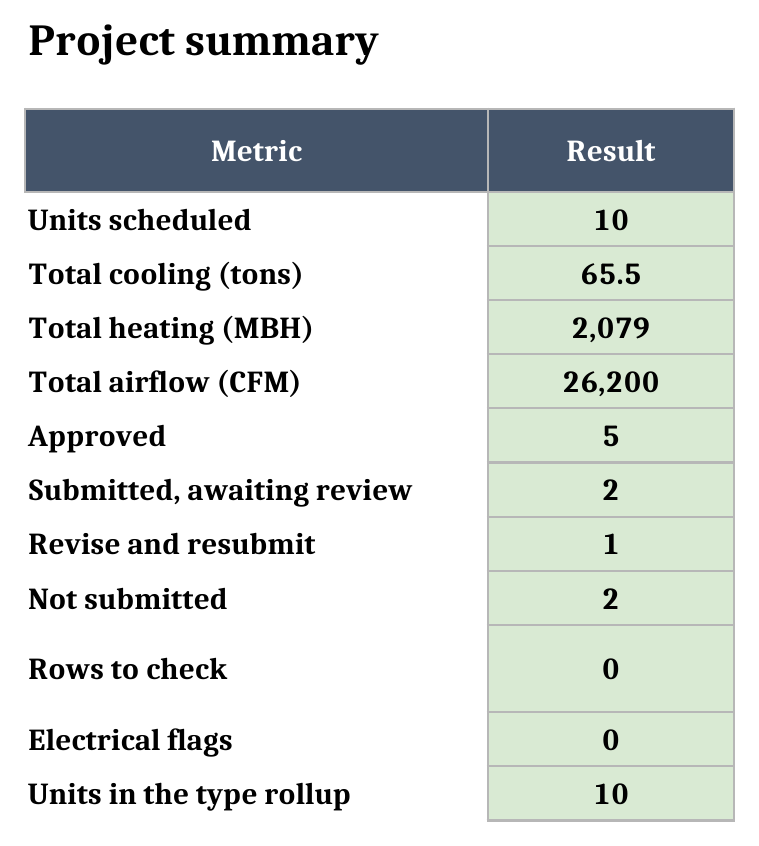
The sample is a small commercial building with 10 units. Here’s what Summary reports for it:
| Metric | Sample result |
|---|---|
| Units scheduled | 10 |
| Total cooling (tons) | 65.5 |
| Total heating (MBH) | 2,079 |
| Total airflow (CFM) | 26,200 |
| Approved | 5 |
| Submitted, awaiting review | 2 |
| Revise and resubmit | 1 |
| Not submitted | 2 |
| Rows to check | 0 |
| Electrical flags | 0 |
| Units in the type rollup | 10 |
And here’s how the cooling splits across types:
| Type | Units | Cooling (tons) | Airflow (CFM) |
|---|---|---|---|
| RTU, packaged rooftop unit | 3 | 32.5 | 13,000 |
| AHU, air handling unit | 1 | 25.0 | 10,000 |
| FCU, fan coil unit | 2 | 3.0 | 1,200 |
| CU, condensing unit | 1 | 5.0 | 0 |
In the sample, the condensing unit’s submittal came back as Revise and resubmit, so it’s the one to chase. The fan coils haven’t been submitted at all, so they are the next package to send.
Type an MOCP of 20 on the condensing unit, below its MCA of 26, and Electrical flags goes from 0 to 1 while the totals stay put. Mark the air handler Approved and the Approved count goes up by one while Submitted goes down by one.
Importing it into Google Sheets
You can bring the file into Google Sheets by importing the .xlsx:
- Download the workbook from the template download link.
- Open Google Sheets.
- Choose File > Import > Upload.
- Select the downloaded file.
- Choose Insert new sheet(s), or create a new spreadsheet from the upload.
- Check Schedule and Summary after the import.
The file has no macros. Before you replace the sample data, check that Summary still matches the worked example above and that the Type and Submittal status dropdowns still list their choices. Colors and column widths can also shift between apps, so look the sheets over before you share the file with your team.
How it differs from an equipment maintenance log
This schedule documents what’s specified and installed. Once the equipment is running, the visits, parts and next-due dates belong in our equipment maintenance log template. A common handover is to carry the tags from this schedule into the log’s asset register, so a technician reading RTU-2 on a work order is looking at the same unit the drawings called RTU-2.
You’ll find the rest of the set on the free field service templates page.
Limitations to know before relying on it
- It’s a design and submittal schedule. There are no maintenance intervals or due dates, by design.
- Totals add the numbers as typed. If someone enters a capacity in BTU/h instead of MBH, the total will be wrong and the sheet won’t know.
- The MOCP check compares two numbers. It doesn’t size circuits or replace the electrical engineer’s review.
- Type codes and tags match exactly, so
RTU1andRTU-1are different units. - The schedule holds up to 300 units and 30 type codes. Formulas, totals and dropdowns stop at row 301 on Schedule and row 31 on Types.
- It’s one file. Two people editing copies will drift, and nothing links a scheduled unit to its later service history.
The last limit is the one that eventually forces a change: once the schedule has to follow each unit into warranty claims, service visits and work orders, the records need a system that keeps them attached to the equipment. Our switching cost calculator estimates what that move costs, and the implementation timeline guide lays out the steps and their order.
Until then, grab the HVAC equipment schedule template, add your project’s units, and pick a type to watch the totals move.